
How to E-File 1099-NEC Forms with the IRS IRIS System Using W2 Mate®
This tutorial walks W2 Mate users through the two parts of filing 1099s with the new IRS IRIS system: creating the ready-to-upload IRIS CSV file in W2 Mate, and uploading that file to the IRS IRIS Taxpayer Portal.
What you need before you start
- 1W2 Mate with the IRIS Export featureW2 Mate® Software with the "W2 Mate IRIS Export — IRS IRIS Portal 1099 CSV Upload Only" feature enabled.
- 2An IRIS Taxpayer Portal TCCA Portal TCC (Transmitter Control Code) is five characters and begins with the letter “D”. TCCs issued for FIRE, IRIS A2A, AIR or PBBA cannot be used in the IRIS Taxpayer Portal. When you apply on the IRS website, check Portal as the transmission method. Allow up to 45 calendar days for processing, so apply well before the filing deadline.
- 3An IRS online account for each userEach person who will sign in to IRIS needs an IRS online account (verified through ID.me), created before they are added to the TCC application.
- 4Optional: Combined Federal/State FilingIf you want the IRS to forward your 1099 data to participating states, elect the Combined Federal/State Filing (CF/SF) Program on your IRIS TCC application. If it is not elected there, forms will not be forwarded to the states, regardless of the settings in W2 Mate.
Part 1 — Create the IRIS CSV File in W2 Mate
Use W2 Mate as usual to enter or import your 1099 data, then follow these steps to create the IRIS CSV file. This tutorial uses Form 1099-NEC as the example; the steps are the same for the other 1099 and 1098 forms W2 Mate supports.
| 1 |
Open the IRIS export menuSelect the E-Filing tab inside W2 Mate. Choose 1099 / 1098 IRIS CSV Upload (Federal IRS Filing Only - IRIS Portal), then select Export 1099-NEC Data as IRIS Template File. (For a different form, choose that form from the same submenu — for example Export 1099-MISC Data as IRIS Template File.)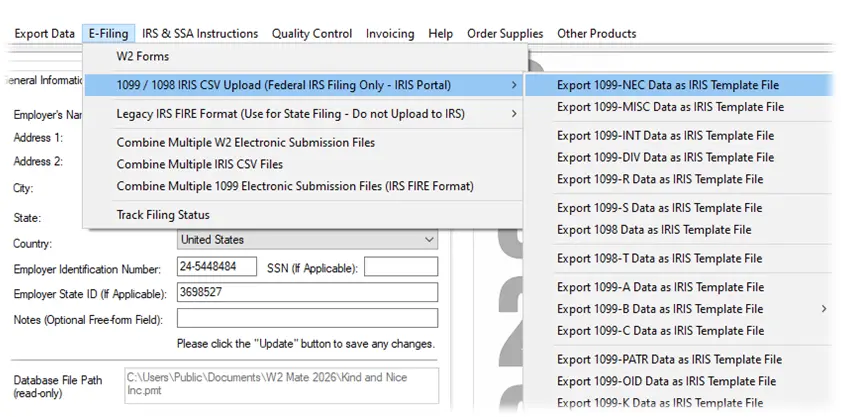 TipYou can select different form types from this menu (such as 1099-MISC or 1099-INT) depending on the returns you are filing.
|
| 2 |
Confirm the IRIS-only noticeW2 Mate displays a notice reminding you that the file is for use with IRIS 1099-NEC CSV import only and should not be uploaded to or used with any other system, portal or agency. Click OK to continue.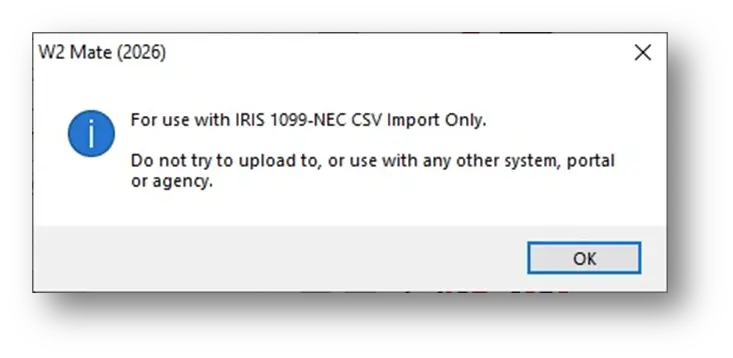 TipThis prompt is a safeguard so you do not accidentally submit this IRIS-formatted file to a state agency portal or any other system.
|
| 3 |
Review the export settingsThe Export 1099 Data to IRIS CSV Template File window opens. It has three sections:
Section 1 — Payer information
Review and, if needed, update the payer details that go into the CSV file: TIN type, Taxpayer ID, name, address, phone and email.
Section 2 — File name and path
Choose where the CSV file is saved. Click Browse... to pick a different folder.
Section 3 — Combined Federal/State Filing
Choose what W2 Mate does when 1099-NEC Box 6 (state) is empty — for example, use the company's address state, or the recipient's address state if the company's state does not participate.
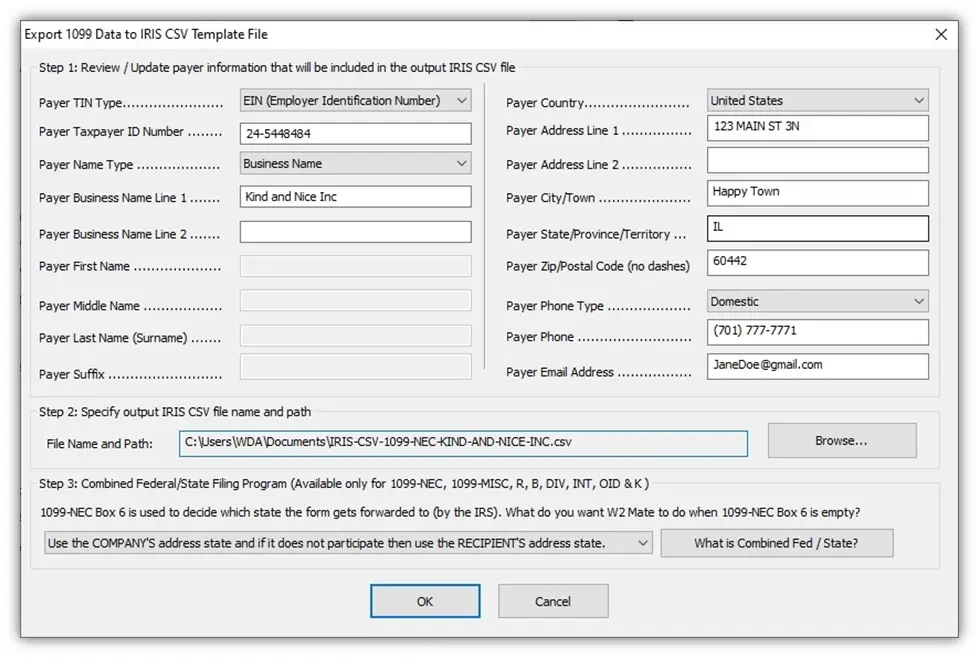 About Combined Federal/State FilingAvailable for 1099-NEC, 1099-MISC, 1099-R, 1099-B, 1099-DIV, 1099-INT, 1099-OID and 1099-K. The IRS forwards forms to the states only if you elected the CF/SF Program on your IRIS TCC application. Each state sets its own requirements, and some require you to file with them directly, so check with your state.
|
| 4 |
Note the saved fileW2 Mate shows a success message confirming the file was created and saved, along with the number of recipients included in the file. This is your ready-to-upload IRIS CSV file. Note the saved file path — you will need it when you upload to the IRIS portal. Click Yes to have W2 Mate open the folder where the file was saved.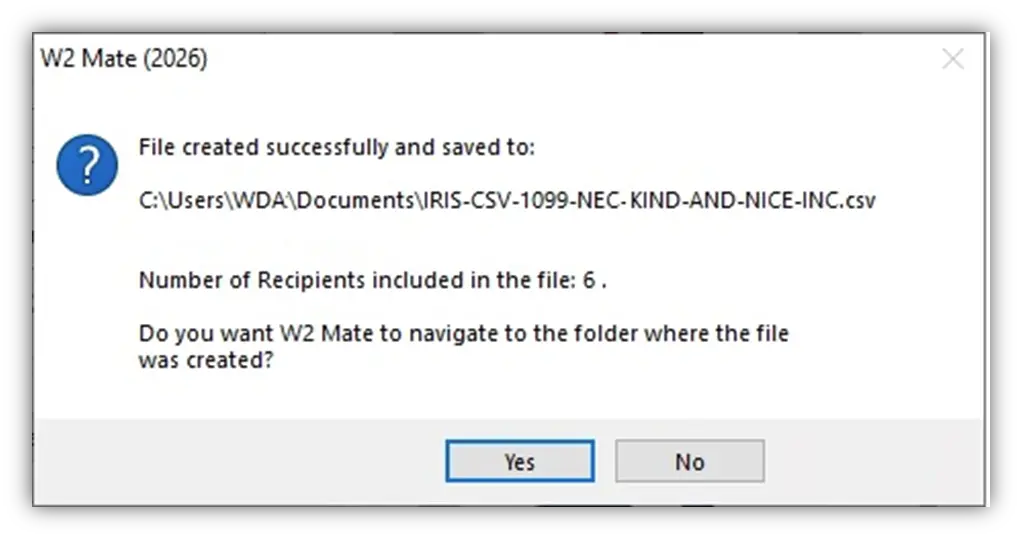 TipVerify the Number of Recipients included matches your own records before you upload. The IRS limits each CSV file to 250 forms; if a payer has more than 250 recipients, W2 Mate automatically creates more than one file, and you upload each one separately.
|
| 5 |
Locate the CSV fileIf you chose Yes, W2 Mate opens the folder containing the saved IRIS CSV file (for example, IRIS-CSV-1099-NEC-KIND-AND-NICE-INC.csv). This is the file you will upload to the IRIS portal. TipKeep this folder window open so you can drag and drop the file into the IRIS portal in Part 2.
|
| 6 |
Optional: review the file without changing itYou can open the IRIS CSV file in a spreadsheet program such as Microsoft Excel to review the data W2 Mate exported (each row represents one form). Do not change anything in the file — it is already formatted to the IRS IRIS template.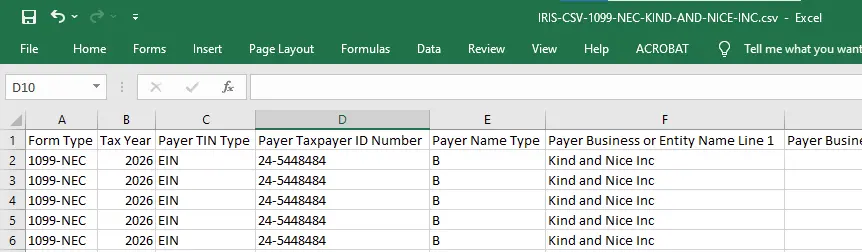 ImportantWhen you close Excel, click “Don't Save”. Saving the file from Excel can strip leading zeros from ZIP codes and TINs or convert long numbers to scientific notation, which causes IRIS to reject the file. To view the file safely, open it in a text editor such as Notepad instead. If something needs to change, correct it in W2 Mate and export the file again rather than editing the CSV by hand.
|
Part 2 — Upload the CSV File to the IRS IRIS Portal
The steps below show how to upload the IRIS CSV file that W2 Mate created. The IRIS portal screens are controlled by the IRS and may change; follow the on-screen prompts. The sample IRS screenshots may show a different form type or tax year than yours — the steps are the same.
| 7 |
Sign in to the IRIS Taxpayer PortalOpen the IRS IRIS Taxpayer Portal at https://la.www4.irs.gov/irportal/ and sign in. Access to IRIS requires identity verification through the IRS sign-in provider (for example, ID.me).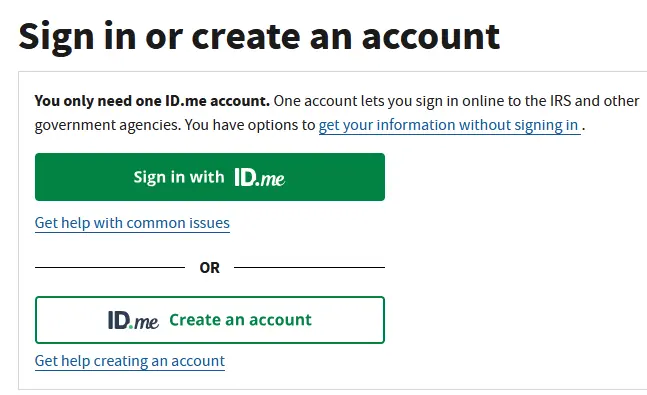 TipIf you have more than one TCC, check the Account menu in the portal header to confirm you are working under the correct Portal TCC (it starts with “D”).
|
| 8 |
Select "Upload CSV with Form Data"From the Dashboard, select the "Upload CSV with Form Data" tile to upload your information return data to the portal.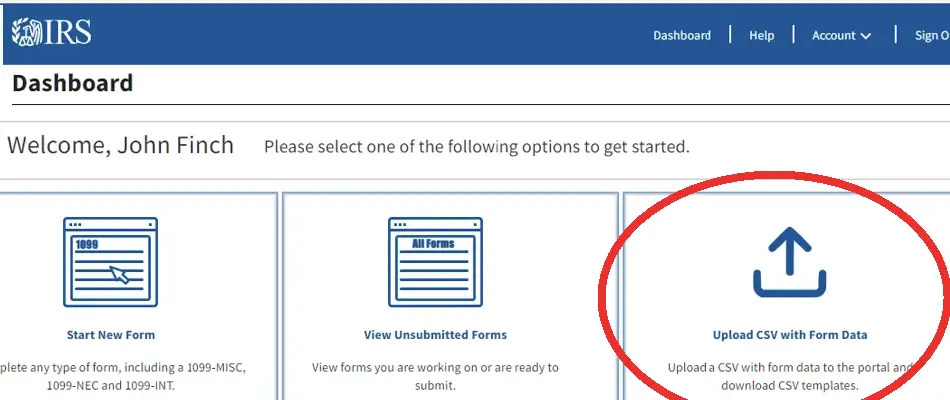
|
| 9 |
Upload your W2 Mate CSV fileOn the CSV File Upload page, skip the "Download File Template" and "Complete CSV" steps — W2 Mate has already created your file in the IRS IRIS template format. Under the "3. Upload File" section, select Browse or drag and drop your saved IRIS CSV file. You can upload only one file at a time, and each file can contain a maximum of 250 records.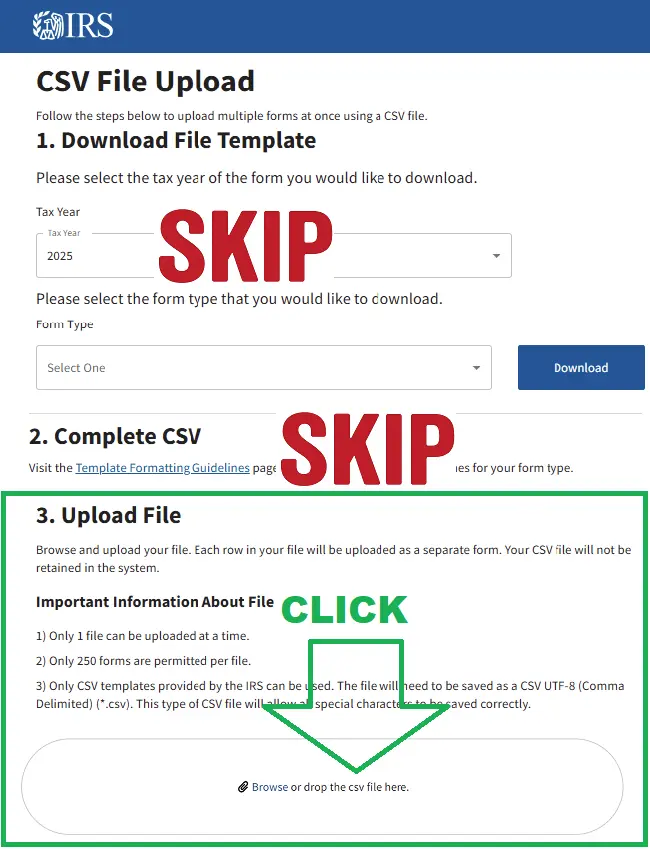 If you see an error messageClick Remove next to the uploaded file, correct the data in W2 Mate, export a new IRIS CSV file, and upload it again. Field-level errors list every problem field at once; file-level errors show one at a time.
|
| 10 |
Start, review and Add AllSelect the Start button to go to the Review Form Information page. Review your uploaded information return data. If any row is incorrect, select the Delete icon to remove that record. Once verified, click Add All to add your forms to the IRIS Taxpayer Portal.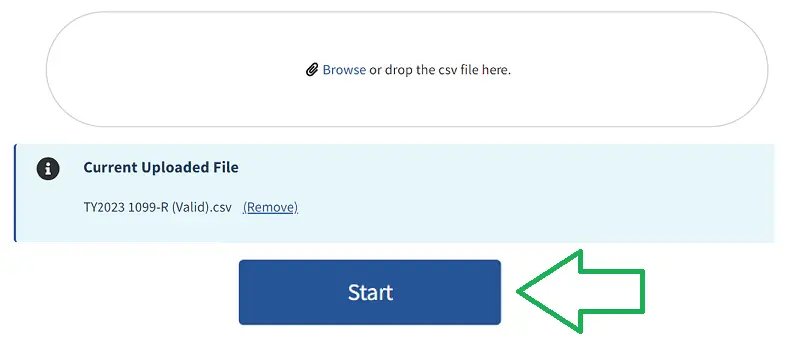 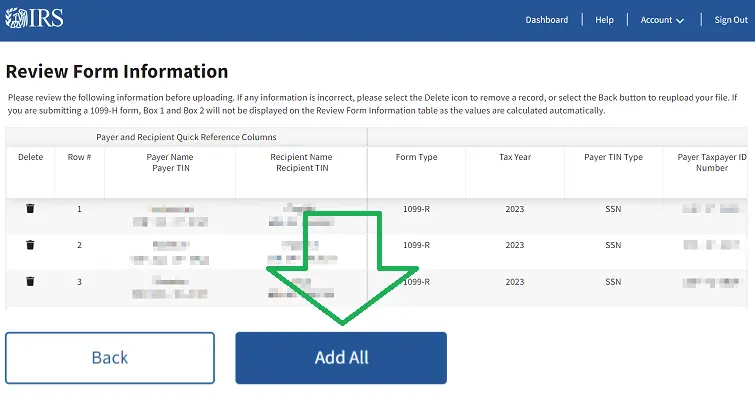 |
| 11 |
Go to Unsubmitted Forms and click SubmitAn "Upload Successful" page appears, showing how many forms have been added to your Unsubmitted Forms page. Forms that contain all required fields are marked "Ready to Submit"; any forms missing required information are marked "In Progress" and must be completed before they can be submitted. Navigate to the Unsubmitted Forms page, select the forms you wish to file using the checkboxes, and click the Submit button.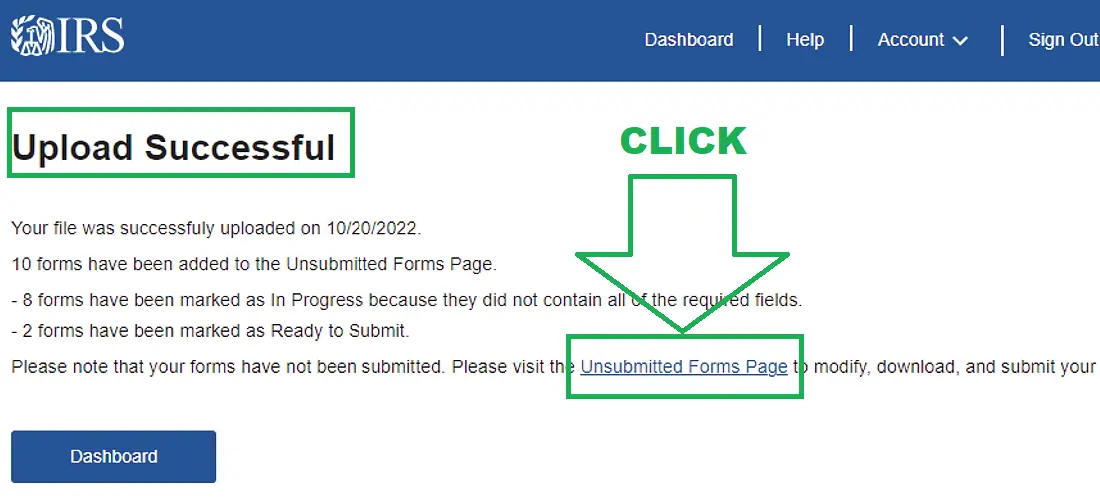 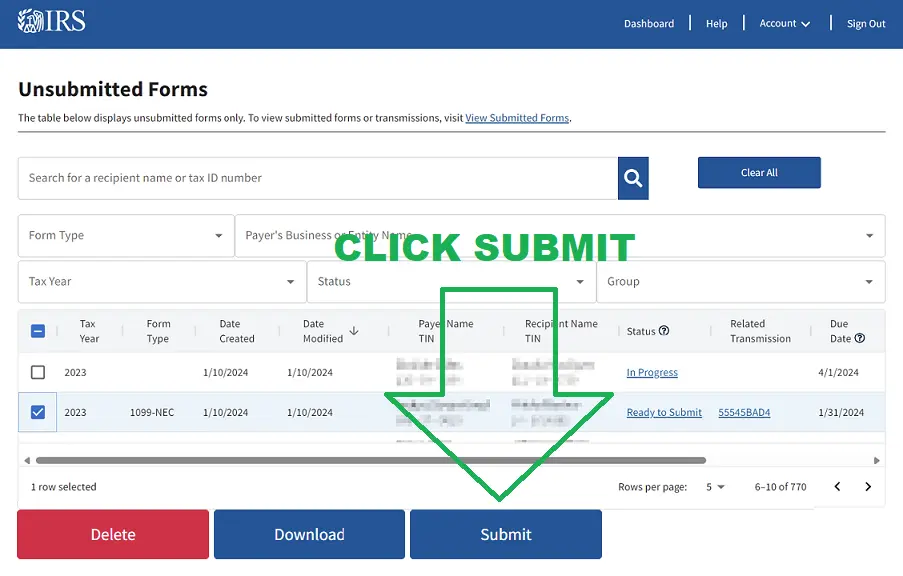 |
| 12 |
Submit All and save your Receipt IDYou are taken to the Summary of Transmissions page to review the forms selected for submission. Check the required declaration checkboxes and click Submit All. The "Your Form(s) Have Been Submitted" page then provides a Receipt ID.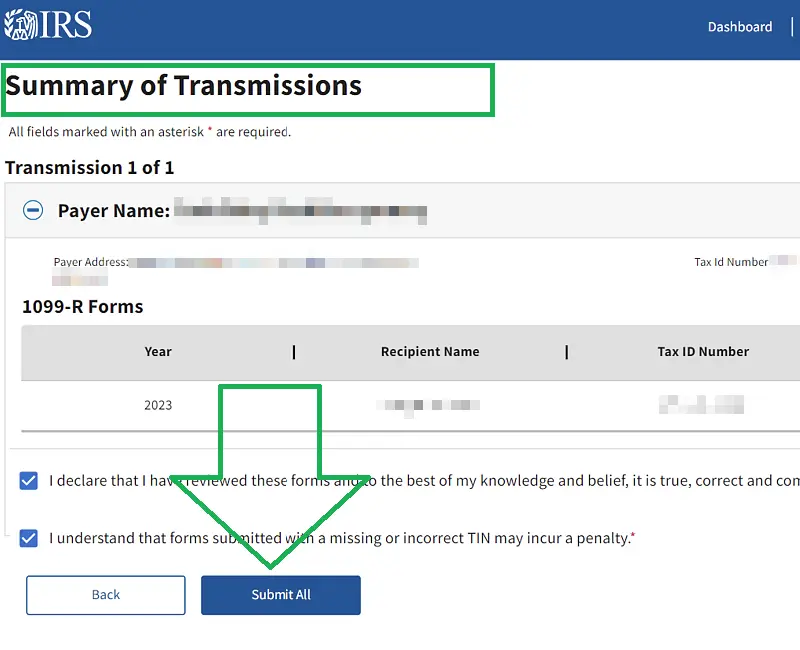 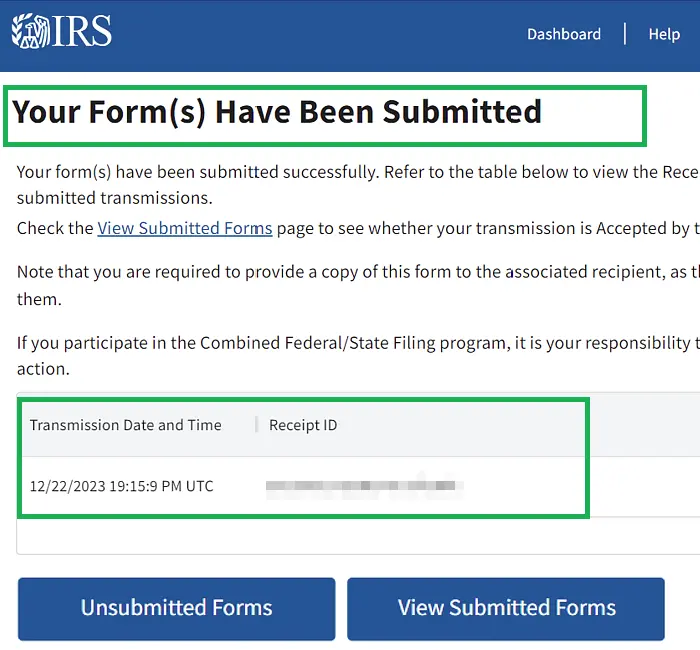 |
| 13 |
Check your transmission statusFrom the Dashboard, select View Submitted Forms and find your Receipt ID. The status shows Received by IRS while the IRS is processing (allow up to 7 days), then changes to one of the following:
|
Good to know
- You do not need to file Form 1096 when filing through IRIS.
- Form 1099-NEC is not eligible for the IRIS automatic extension. A 30-day extension for 1099-NEC must be requested on paper Form 8809.
- IRIS Help Desk: 866-937-4130 (toll-free), Monday–Friday, 7:30 a.m.–7:00 p.m. ET.