
IRIS A2A XML Direct Filing: TCC, Certificate, API Client ID, User ID and Communication Test
This guide is only for filing through the IRIS A2A channel (XML format). W2 Mate® supports both IRIS XML A2A format and IRIS CSV portal format. If you upload a CSV file generated by W2 Mate to the IRIS Portal, you don't need these steps; you only need an IRIS TCC for the Portal. IRIS A2A and IRIS CSV upload are separate optional features in W2 Mate, so make sure you buy the right one on the Buy page.
This guide, including all of its steps, is for informational purposes only.
Why file through IRIS A2A with W2 Mate®
- You are the transmitter. You file under your own TCC and your own certificate, and your data goes to the IRS without passing through anyone else. We are not aware of any other system that works this way: other systems either have you upload your data to their servers and pay per form, or you are not the transmitter and do not use your own certificate.
- Ideal for large filers. The IRS designed the A2A channel for filing large volumes of information returns, while the IRIS Portal is meant for typing in or uploading smaller batches. If you file a large number of forms, A2A is the right channel, and you can save a lot of money. Online services typically don't let you connect directly with the IRS, and they charge you per form to send your data. With W2 Mate, you send your data directly to the IRS yourself, with no middleman, so you don't pay an online service per form.
- Your data stays on your computer. W2 Mate is desktop software, so your data stays locally on your own computer or server until you use the W2 Mate IRIS A2A utility to create the XML transmission file and upload it directly to the IRS. That way, you don't pay per form.
- We made the IRS steps as easy as possible. We researched an affordable certificate you can buy. W2 Mate generates the JWKS file you need to apply for your API Client ID, and creates a ready-to-send test file so you can pass the communication test the IRS requires. We also wrote this comprehensive, easy-to-follow tutorial; we have not found anything like it from the IRS or any other source.
- Tested beyond IRS requirements. In addition to the required IRS testing, we ran multiple tests for every form type W2 Mate supports, covering every box on each form. We also submitted multiple files, each containing 30,000 recipients, to the IRS test server, and each was processed quickly and accepted. At its October 14, 2026 IRIS working group meeting, the IRS announced that each submission to its test server may now contain up to 500 information returns; our large-volume tests were completed before this limit was introduced. The 500 limit applies only to the test environment. For production files, a transmission can't exceed 100 MB, and each submission within a transmission can contain up to 30,000 information returns.
The six steps
The IRS requires these six steps before any business can send information returns directly to it through the IRIS Application to Application (A2A) channel. Open each step when you reach it. If you already have an IRIS A2A Transmitter TCC, start at Step 2.
1 Apply for your Transmitter TCCYou get your TCC (5 characters, starts with D)Already have an IRIS A2A Transmitter TCC? Skip to Step 2.
Skip this step if you already have an IRIS TCC with the Transmitter role and the A2A transmission method. A FIRE TCC, or an IRIS TCC for the Portal only, won't work for A2A.
- Go to irs.gov/iristcc and select Access IRIS Application for TCC.
- Sign in with ID.me and choose Individual on the Select Your Organization page.
- Select New Application › IRIS Application for TCC.
- Fill in your business details and choose:
- Role: Transmitter
- Transmission method: Application to Application (A2A)
- Add your Responsible Officials: two, or one for a sole proprietor or single-member LLC. Each one signs in and signs the application with their 5-digit PIN.
Your TCC appears on the Application Summary page once approved, and the IRS also mails a letter.
You do not need W2 Mate's Software ID for this application.
2 Get a certificate and your API Client IDYou get your Client ID
A. Buy the certificate
- Go to SSL.com Client Authentication Certificates.
- Choose OV (Organization) and the 3-year term, so you don't have to renew it with the IRS every year.
- Complete SSL.com's organization check, then download the certificate as a .pfx or .p12 file and set a password.
W2 Mate is not affiliated with SSL.com. We suggest them because, after a lot of research, we found them to be a good price.
Order the certificate early. SSL.com has to verify your business before it issues the certificate, which can take a few business days.
B. Generate the JWKS file in W2 Mate®
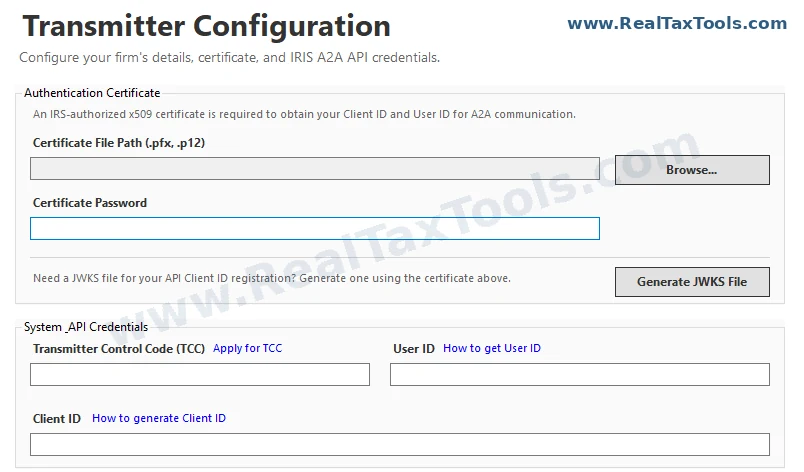
- Open the W2 Mate IRIS A2A utility and select Configure Transmitter Settings on the Main Dashboard.
- Under Authentication Certificate, select Browse... and choose your certificate file.
- Enter the Certificate Password.
- Select Generate JWKS File and save the file.
C. Apply for the API Client ID
- Go to irs.gov/iris and select Get an API Client ID.
- Sign in, choose Individual, then New Application › API Client ID Application.
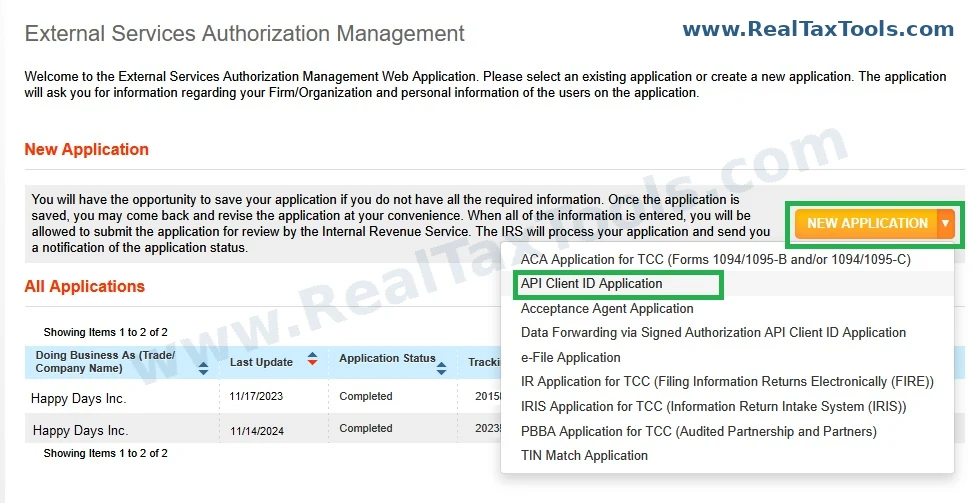
On the External Services Authorization Management page, open New Application and choose API Client ID Application. - Select NEW API CLIENT ID and fill in:
- API Label: any name, such as W2 Mate
- Select API: IRIS
- API Status: Active
- Provider Type: A2A
- JSON Web Key: open your JWKS file in Notepad and paste its full contents
- Submit. Your Client ID appears on the Application Details page.
3 Grant consent and get your User IDYou get your IRIS User IDSet up both TEST and PROD
Important: you must set up consent twice, once for TEST and once for PROD. TEST is the IRS test environment, which you need for the communication test in Step 5. PROD is the production environment, which you need to file real returns. If either one is missing, that step will fail.
- Go to the IRS Consent App and sign in.
- On the Select Your Organization page, select the organization whose Application Type is IRIS TCC. Do not select your API application.
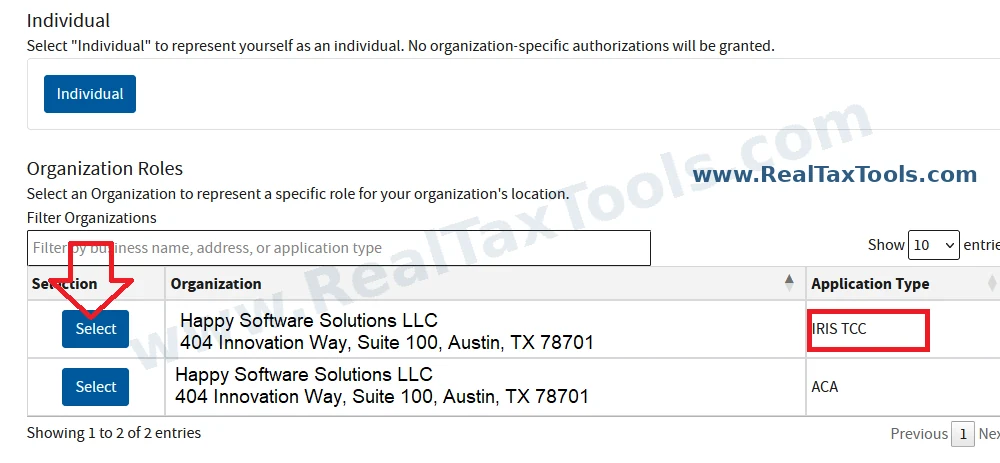
Choose the row that says IRIS TCC. - On the IRS API Authorization Management page, select Setup under A2A Setup.
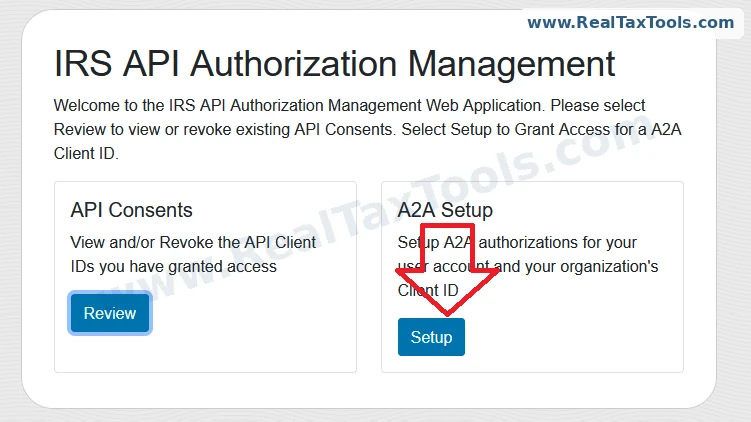
Select Setup, not Review. - Enter your A2A Client ID (the long Client ID from Step 2), choose PROD as the A2A Environment, and select Grant Access.
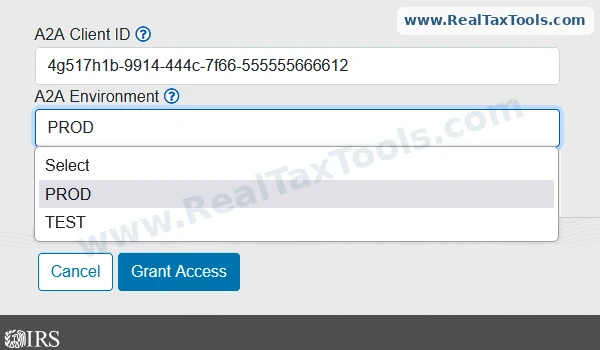
The Client ID shown is a sample. Enter your own. - Copy the User ID the IRS shows next. It looks like
MYIRISID-12345678. - Don't stop here. Select Setup again and repeat with TEST as the A2A Environment. You must set up both PROD and TEST.
- To check, select Review. You should see two rows for your Client ID, one PROD and one TEST, both ACTIVE.
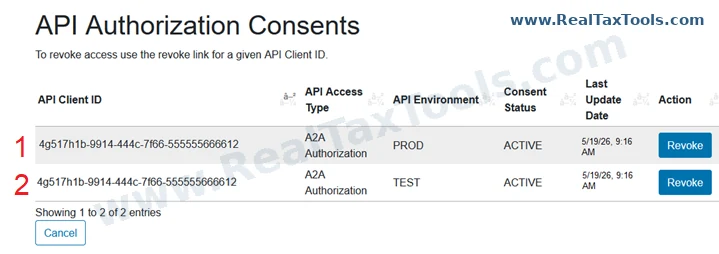
Both PROD and TEST are set up.
Copy the User ID as soon as it appears. You can't view it again later. If you lose it, you have to revoke the consent and set it up again.
4 Enter your credentials in the W2 Mate® IRIS A2A utilityYou get W2 Mate connected to the IRS
In the W2 Mate IRIS A2A utility, go back to the Transmitter Configuration screen you used in Step 2 and fill in the fields under System API Credentials:
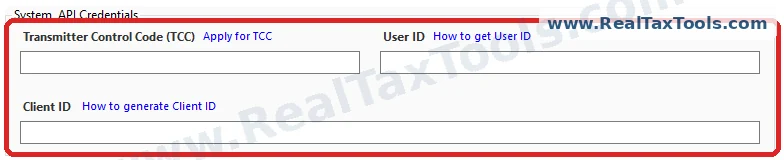
| Field | Enter | From |
|---|---|---|
| Transmitter Control Code (TCC) | Your TCC | Step 1 |
| User ID | Your full User ID | Step 3 |
| Client ID | Your Client ID | Step 2 |
Make sure your firm's name and EIN in W2 Mate match your TCC application exactly.
5 Send the communication testYou get an Accepted Receipt ID
The IRS requires a one-time test to prove your connection works. W2 Mate builds the test file to IRS requirements, so you don't need to enter any data.
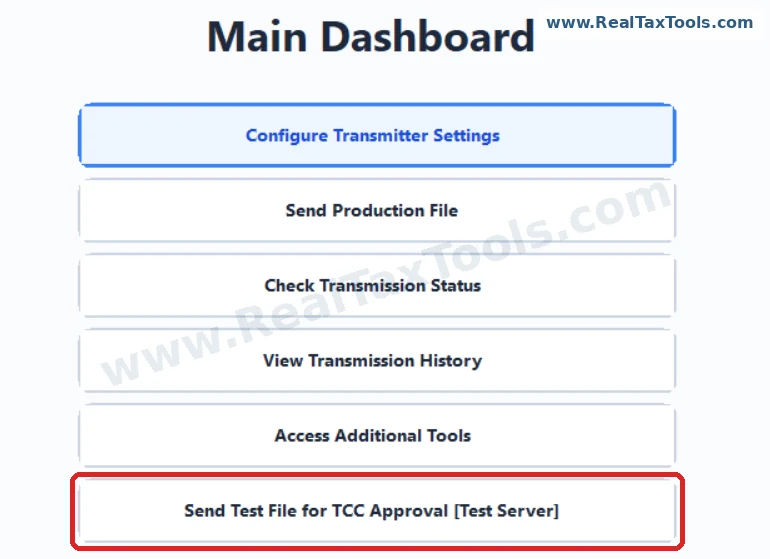
- On the W2 Mate IRIS A2A utility's Main Dashboard, select Send Test File for TCC Approval [Test Server].
- W2 Mate sends the test file and checks its status for you. When the status is Accepted, note the Receipt ID for Step 6.
6 Contact the IRS to go liveYou get approval to file real returns
- Ask the IRS for a communication test review in either of these ways:
- Call the IRIS Help Desk at 866-937-4130, Monday to Friday, 7:30 a.m. to 7:00 p.m. ET.
- Chat at irs.gov/e-services: select the chat bubble at the bottom right, sign in with ID.me, and ask for a live agent. Live chat runs Monday to Friday, 7:30 a.m. to 7:30 p.m. ET.
- Have this information ready before you call or chat:
- Your company's EIN and the company name associated with that EIN and your TCC
- Your TCC
- Your Receipt ID from Step 5
- Your name, phone number and email address
The IRS will ask for your EIN and the company name associated with it, so have them ready. They must match your TCC application.
- Once they move your TCC to Production, send your real returns with Send Production File on the Main Dashboard.
You're doneYou're ready to file live returns with W2 Mate.
Questions about W2 Mate screens? Contact us. Questions about your TCC or IRS status? Call the IRIS Help Desk at 866-937-4130. This guide is based on IRS Publications 5718, 5719 and 5903, current as of October 2026.