
Send with Gmail
Gmail is the most common choice. Because Google no longer accepts your normal password from outside apps, you create a one-time App Password, enter it once in DocuSend Mate, and you are ready to send.
Connect & Test Email
- Generate a Google App Password
You cannot use your normal Gmail password. First make sure 2-Step Verification is on, then create an App Password:
Under App name enter “DocuSend Mate” and click Create. Copy the 16-character code.
- Enter it in DocuSend Mate
Open Settings, choose Gmail (App Password), enter your full Gmail address, paste the App Password, and set your From Name. The host (
smtp.gmail.com) and port (587) fill in for you.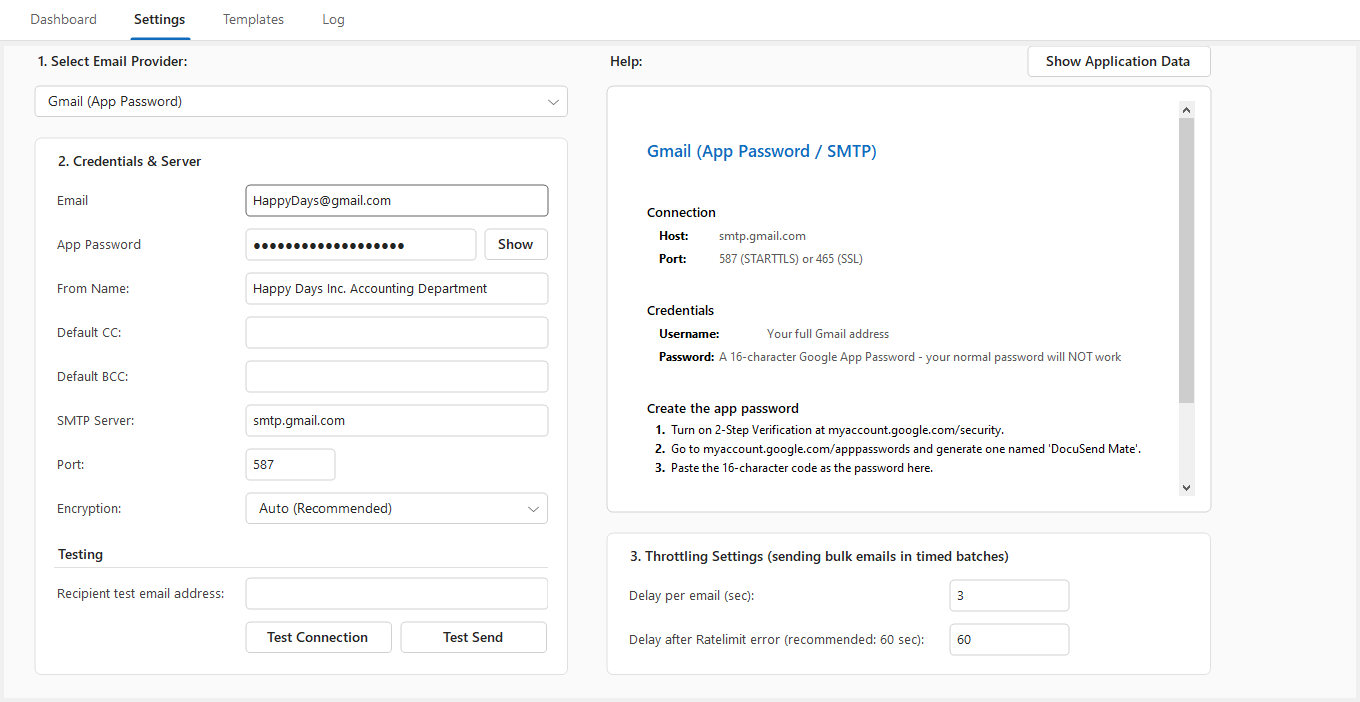
Gmail (App Password) configured on the Settings tab, with the Gmail help panel on the right. - Send a test
In the Testing section enter your own email, click Test Connection, then Test Send.
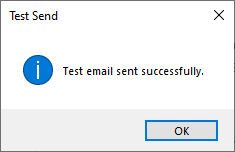
If the test email arrives, Gmail is ready.
Review Template
- Check the default message
Open the Templates tab and review the subject and body.
- Edit and use tags
Adjust the wording and use tags the app fills per recipient:
[Recipient Name][Recipient Email][Company Name][Contact Email][Contact Phone][Date]
Import & Send
- Locate your data
Find the W2 Mate / Payroll Mate results folder — it holds your password-protected PDFs and
ListofPDFFilesCreated.csv. - Import the batch
Click Load CSV File and select
ListofPDFFilesCreated.csv. Each recipient is matched to their PDF.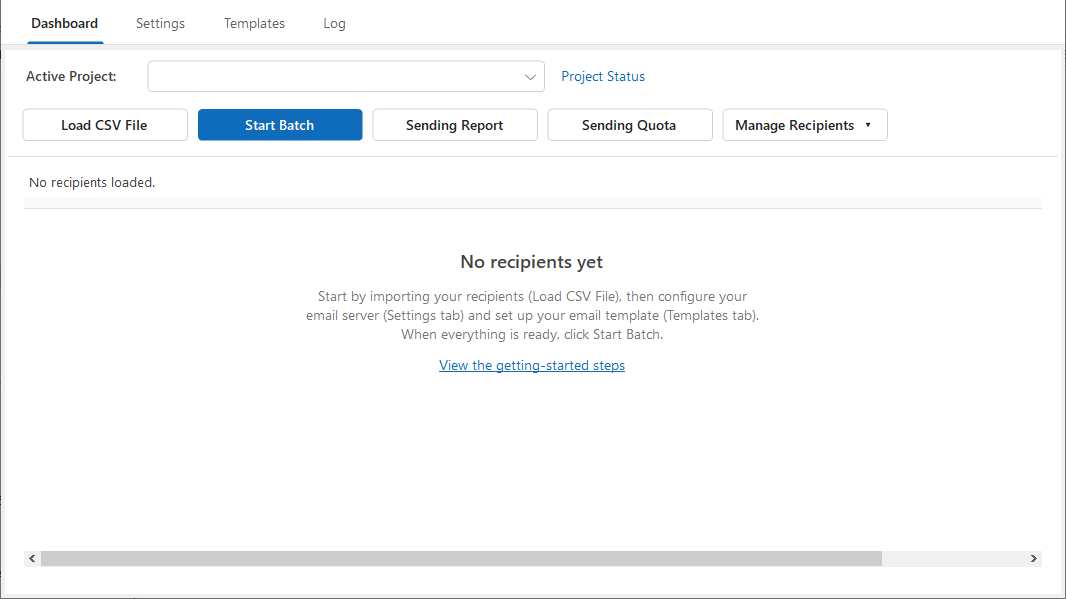
The Dashboard, ready to load your list. - Start sending
Click Start Batch, review the preview, and confirm. Only Pending and Failed recipients are sent.
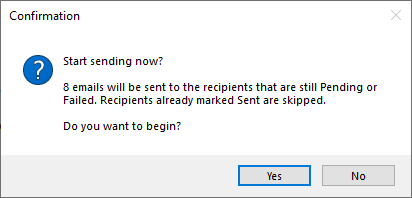
Confirm before the batch sends. Gmail daily limit: a standard Gmail account can send ~500 emails per day (Google Workspace up to 2,000). For larger runs, use Throttling and spread across days.
Need Assistance?
Our team is happy to help with your 1099 and W-2 filing and delivery.